Z-image Advanced Tutorial: Controlnet, inpainting, 4K+ upscaling & more
As open-source image generators like Z-image mature, mastering precise structural control via ControlNet and high-resolution upscaling pipelines becomes crucial for indie filmmakers seeking studio-grade asset control.
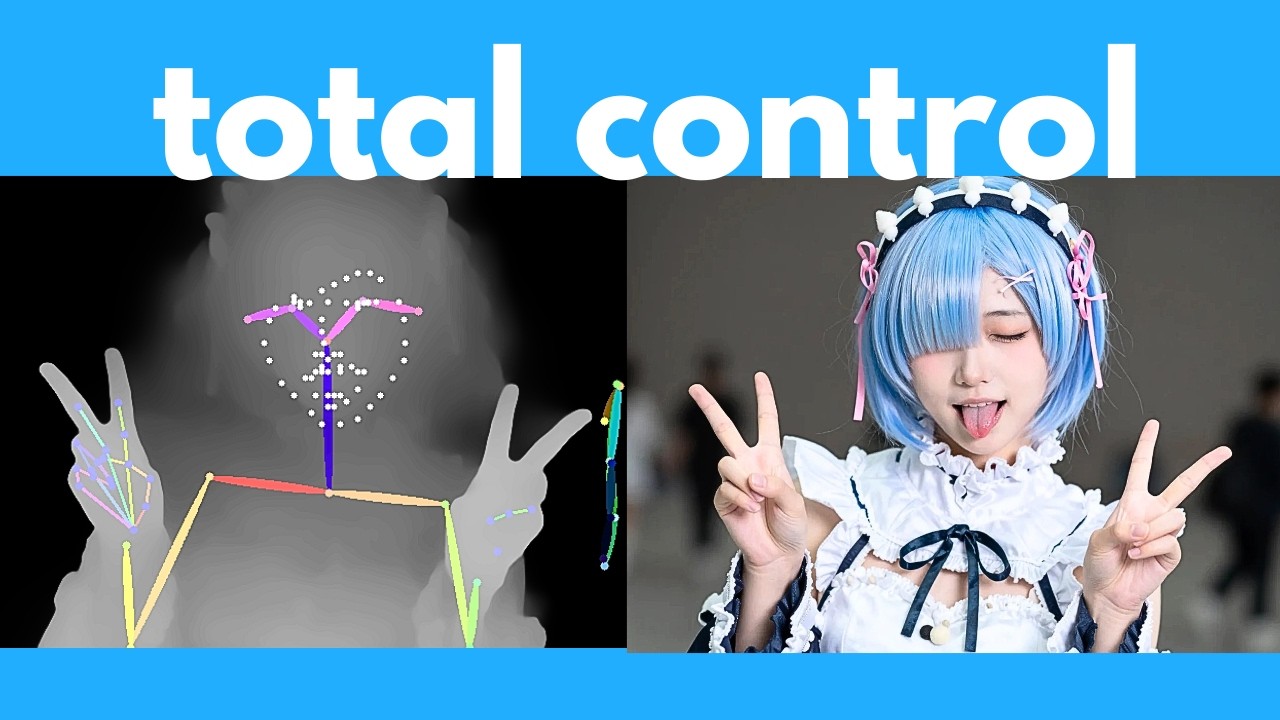
What this lesson covers
This tutorial covers advanced Z-image techniques inside ComfyUI, focusing on ControlNet workflows for composition and pose guidance. It also demonstrates multi-pass upscaling and 4K enhancement using SeedVR2.
Key takeaways from the creator
AI-extracted notes, not independently verified product claims. Timestamp links let you check each point in the original video.
- 01:08 ↗
ControlNet for Z-image enables composition and pose control using reference images via an official ComfyUI workflow.
- 03:23 ↗
Required models for the Z-image ControlNet workflow include the Qwen 3 text encoder, Z-image turbo model, and the ControlNet union safetensors patch.
- 07:14 ↗
Pose estimation nodes can be integrated into ComfyUI using custom node managers to extract poses from reference characters.
- 16:38 ↗
Multi-pass upscaling approaches allow creators to push image details higher before executing final high-resolution passes.
Workflow outlined in the video
- Update ComfyUI via the manager interface before attempting to install new custom nodes or workflows.
- Download the official Z-image turbo ControlNet workflow JSON and place it in your ComfyUI root directory.
- Ensure all required dependencies including the Qwen 3 text encoder, VAE, and ControlNet safetensors are correctly placed in their respective model subdirectories.
- Load the workflow into ComfyUI, press R to refresh your model lists, and verify the correct model checkpoints are selected.
Before you use this workflow
These notes describe the source video at its publication date. Model access, pricing, connectors and interfaces may have changed. Check the original source and the provider’s current documentation before installing an add-on, connecting an account or spending credits.
ReelStack has not independently tested this workflow. Preview one representative shot and check motion, continuity and output quality before applying it to a full production. No result, cost saving or model capability is guaranteed.
Explore the tools
Put the lesson in context
When to use Blender previsualization for AI video →How to interpret the numbers
169,292 views captured 23 October 2026. ReelStack recommendation score: 53/100. Formula: radar-v5. This is ReelStack’s calculation, not a YouTube rating or a measure of factual accuracy.
Show the calculation
- 45% performance: 1.59× views vs 12 other channel videos observed at a similar age. View-evidence factor 99% (views / (views + 1,000))
- 25% freshness: 0/100 with a 14-day half-life
- 20% momentum: 109 views/day vs 2 channel baseline (6 comparable uploads), with the same view-evidence factor
- 10% engagement: 64/100; likes + 4× comments, smoothed with a 500-view neutral prior