You Don’t Need to Upgrade to Use AI in DaVinci Resolve
Shows filmmakers how computer-control AI agents can handle tedious pre-edit setup, clip assembly, and look testing inside free editing software.
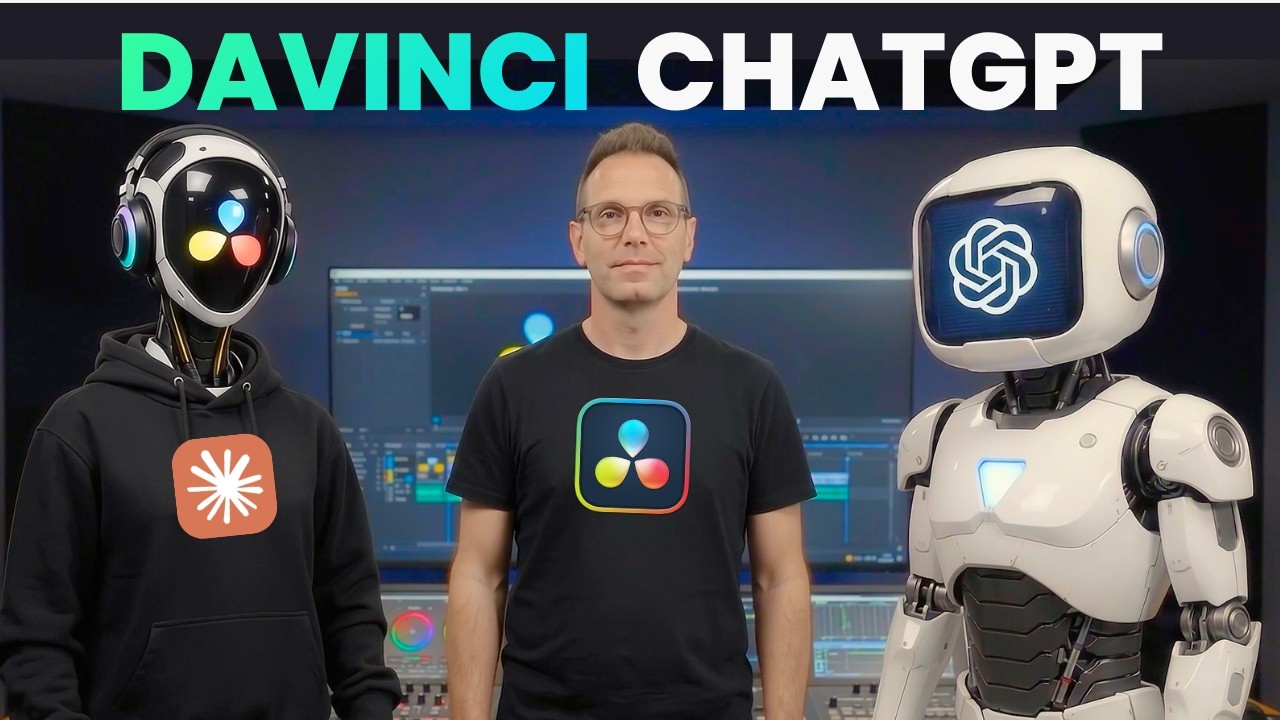
What this lesson covers
The video tests using ChatGPT Desktop and Claude Code to automate timeline setup and color grading in the free version of DaVinci Resolve without the official Studio MCP integration. The host compares how both AI agents organize 20 generated video clips, perform color correction passes, and create four-way look comparison grids.
Key takeaways from the creator
AI-extracted notes, not independently verified product claims. Timestamp links let you check each point in the original video.
- 01:13 ↗
ChatGPT Desktop's computer control feature can operate free DaVinci Resolve to set up projects, import assets, and build timelines.
- 03:08 ↗
AI agents can step through clips methodically on the timeline to perform basic color balancing and apply uniform look passes.
- 05:28 ↗
Supplying reference screenshots enables AI agents to generate color lookup tables (.cube files) and compile multi-panel grid videos for look comparisons.
- 06:48 ↗
Claude Code can analyze folder assets and automatically run commands to open DaVinci Resolve and structure scenes with script takes.
Workflow outlined in the video
- Open ChatGPT Desktop or Claude Code and grant access to the folder containing your generated footage and script.
- Instruct the AI agent to launch DaVinci Resolve, create a new project, and import your media clips.
- Prompt the agent to analyze file names and script text to place takes on the timeline in chronological order.
- Provide screenshot reference images and ask the agent to generate matching color grades and build a four-quadrant comparison video.
- Review the comparison grid and instruct the agent to apply your chosen color grade project-wide.
Before you use this workflow
These notes describe the source video at its publication date. Model access, pricing, connectors and interfaces may have changed. Check the original source and the provider’s current documentation before installing an add-on, connecting an account or spending credits.
ReelStack has not independently tested this workflow. Preview one representative shot and check motion, continuity and output quality before applying it to a full production. No result, cost saving or model capability is guaranteed.
Explore the tools
How to interpret the numbers
5,875 views captured 24 September 2026. ReelStack recommendation score: 52/100. Formula: radar-v5. This is ReelStack’s calculation, not a YouTube rating or a measure of factual accuracy.
Show the calculation
- 65% performance: 0.72× current views vs the channel's recent median; same-age history is not yet available. View-evidence factor 85% (views / (views + 1,000))
- 25% freshness: 92/100 with a 14-day half-life
- Momentum pending: collecting daily snapshots; its 20% weight goes to observed performance, not free points
- 10% engagement: 58/100; likes + 4× comments, smoothed with a 500-view neutral prior