Seedance 2.0 Omni Complete Workflow | Total Control
Mastering multi-reference inputs and frame-to-frame transitions solves the narrative fragmentation common in long-form AI video generation.
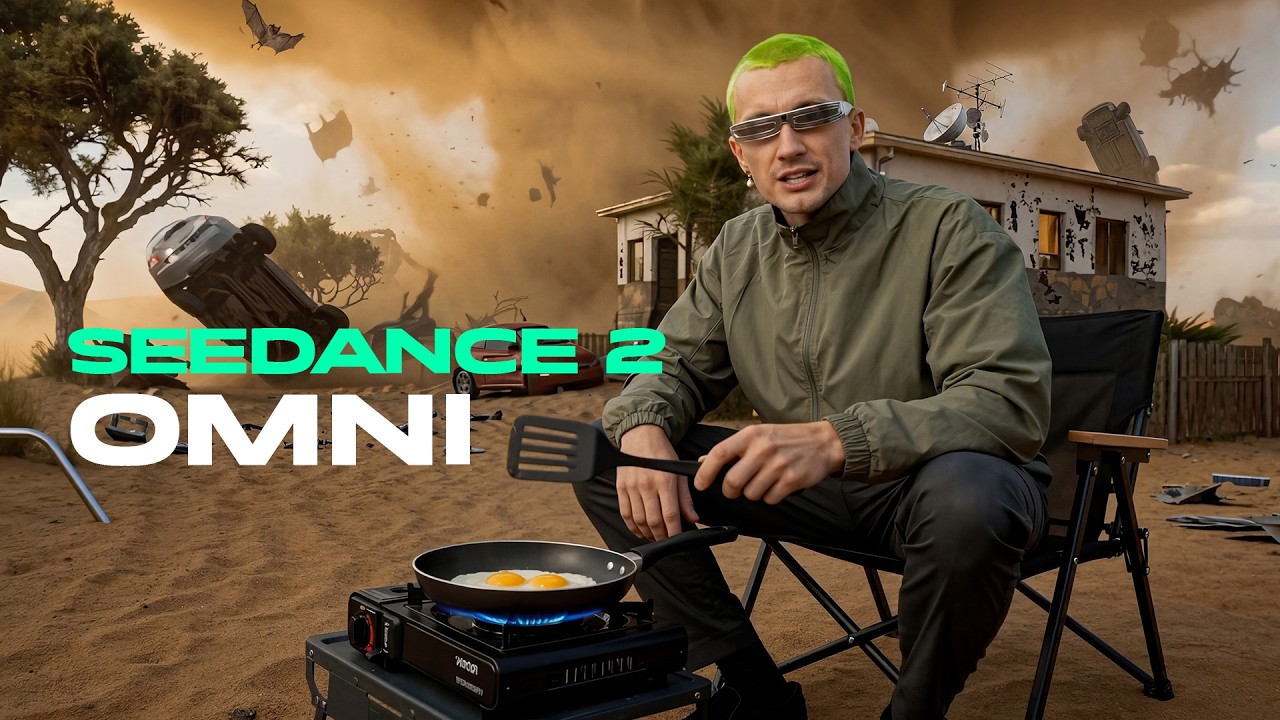
What this lesson covers
This video breaks down a complete workflow for Seedance 2.0 Omni, detailing how to maintain character and location consistency across complex action scenes. The creator shares practical prompting strategies, multi-image referencing techniques, and editing handoffs.
Key takeaways from the creator
AI-extracted notes, not independently verified product claims. Timestamp links let you check each point in the original video.
- 02:50 ↗
Seedance 2.0 supports up to nine input references, which helps prevent the neural network from inventing inconsistent visual elements.
- 04:21 ↗
Generating key character and location reference assets ahead of time ensures seamless splicing between independently generated clips.
- 06:15 ↗
Extracting the last frame of a preceding video and the first frame of the next video provides continuity reference for scene transitions.
- 07:23 ↗
Creating a single close-up and full-length collage of your main character gives the model a complete look to adapt across different shot types.
- 11:19 ↗
Assembling the final multi-shot sequence in DaVinci Resolve allows you to clean up minor discrepancies and polish the narrative flow.
Workflow outlined in the video
- Analyze your script to identify key characters, objects, and locations before starting generation.
- Generate distinct reference images for your main elements using a reliable image model.
- Input multiple reference images and previous frames into Seedance 2.0 Omni to maintain visual continuity across shots.
- Extract first and last frames from adjoining clips to generate smooth scene transitions.
- Import your generated shots into DaVinci Resolve to assemble the final sequence.
Before you use this workflow
These notes describe the source video at its publication date. Model access, pricing, connectors and interfaces may have changed. Check the original source and the provider’s current documentation before installing an add-on, connecting an account or spending credits.
ReelStack has not independently tested this workflow. Preview one representative shot and check motion, continuity and output quality before applying it to a full production. No result, cost saving or model capability is guaranteed.
Explore the tools
How to interpret the numbers
58,999 views captured 24 October 2026. ReelStack recommendation score: 56/100. Formula: radar-v5. This is ReelStack’s calculation, not a YouTube rating or a measure of factual accuracy.
Show the calculation
- 45% performance: 3.76× views vs 6 other channel videos observed at a similar age. View-evidence factor 98% (views / (views + 1,000))
- 25% freshness: 0/100 with a 14-day half-life
- 20% momentum: 8 views/day vs 4 channel baseline (3 comparable uploads), with the same view-evidence factor
- 10% engagement: 84/100; likes + 4× comments, smoothed with a 500-view neutral prior