Perfect AI Lip Sync (Better than Kling) | Free Workflow
As music video creators increasingly demand precise lip synchronization, comparing platforms like Kling, Veo 3, and open-source InfiniteTalk offers crucial workflow clarity for independent filmmakers.
What this lesson covers
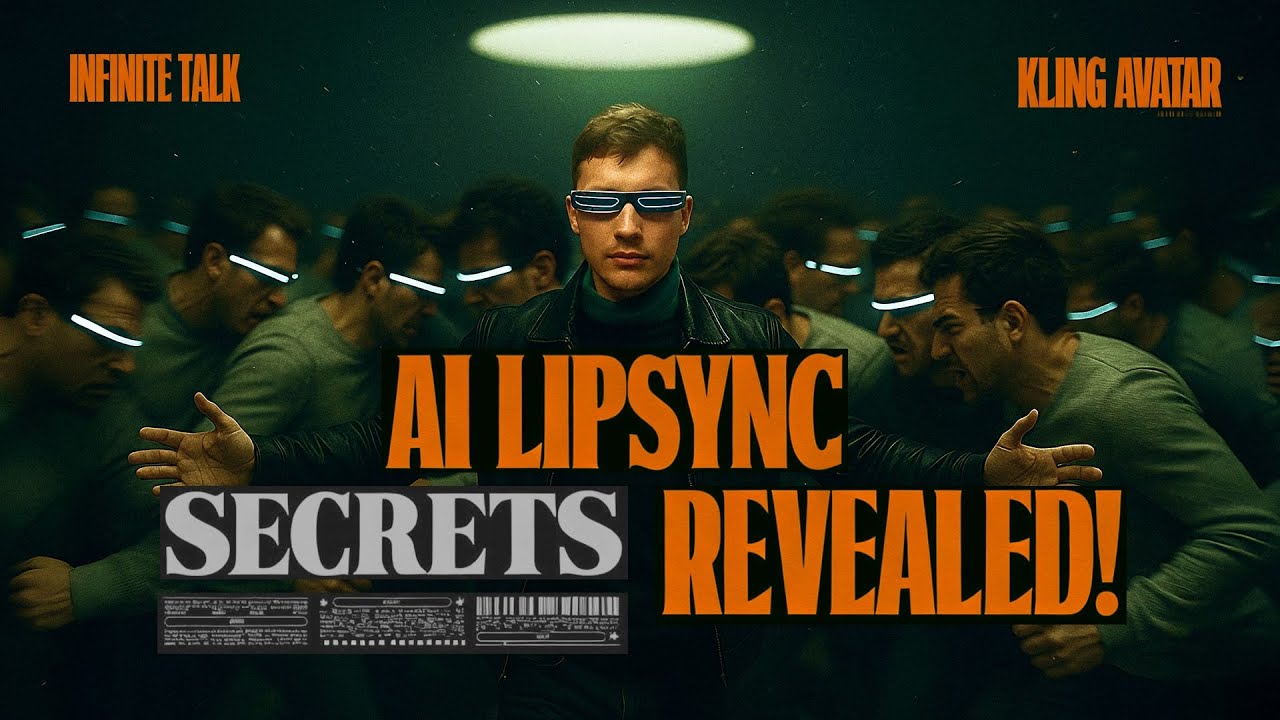
The tutorial explores various lip-syncing techniques comparing Kling Avatar, InfiniteTalk, and Google Veo 3 for music video production. It guides users through cloud-based ComfyUI setups on RunningHub, video HD upscaling, and structured prompt generation for multi-shot clips.
Key takeaways from the creator
AI-extracted notes, not independently verified product claims. Timestamp links let you check each point in the original video.
- 00:30 ↗
Kling Avatar offers a quick built-in app solution to generate custom lip-sync videos from static images and audio uploads.
- 02:21 ↗
InfiniteTalk in ComfyUI provides a free, open-source video-to-video lip-sync alternative that yields high-quality synchronization when paired with cloud runners like RunningHub.
- 03:56 ↗
Wan 2.2 video HD restoration workflows on RunningHub enhance facial details, skin textures, and color consistency while removing compression artifacts.
- 06:37 ↗
Google Veo 3 remains a powerful option for image-to-video lip-syncing, particularly for short punchy words and single-second expressions.
- 08:00 ↗
Incorporating multiple quick camera switches within an 8-second generation window helps mask minor synchronization imperfections in AI music videos.
Workflow outlined in the video
- Test Kling Avatar's custom image upload and audio dubbing features for straightforward talking head generation.
- Access RunningHub to utilize InfiniteTalk workflows if local PC hardware lacks the power to run ComfyUI locally.
- Apply the Wan 2.2 video HD upscaler workflow to boost generated video resolution to 1080p and refine skin and background textures.
- Use a JSON prompt builder tool alongside Google Veo 3 to map out detailed camera shots and dialogue cues within an 8-second limit.
- Edit and cut clips together tightly in post-production, adjusting playback speed to perfectly match your target audio track.
Before you use this workflow
These notes describe the source video at its publication date. Model access, pricing, connectors and interfaces may have changed. Check the original source and the provider’s current documentation before installing an add-on, connecting an account or spending credits.
ReelStack has not independently tested this workflow. Preview one representative shot and check motion, continuity and output quality before applying it to a full production. No result, cost saving or model capability is guaranteed.
Explore the tools
How to interpret the numbers
34,581 views captured 24 October 2026. ReelStack recommendation score: 54/100. Formula: radar-v5. This is ReelStack’s calculation, not a YouTube rating or a measure of factual accuracy.
Show the calculation
- 65% performance: 2.26× current views vs the channel's recent median; same-age history is not yet available. View-evidence factor 97% (views / (views + 1,000))
- 25% freshness: 0/100 with a 14-day half-life
- Momentum pending: collecting daily snapshots; its 20% weight goes to observed performance, not free points
- 10% engagement: 100/100; likes + 4× comments, smoothed with a 500-view neutral prior