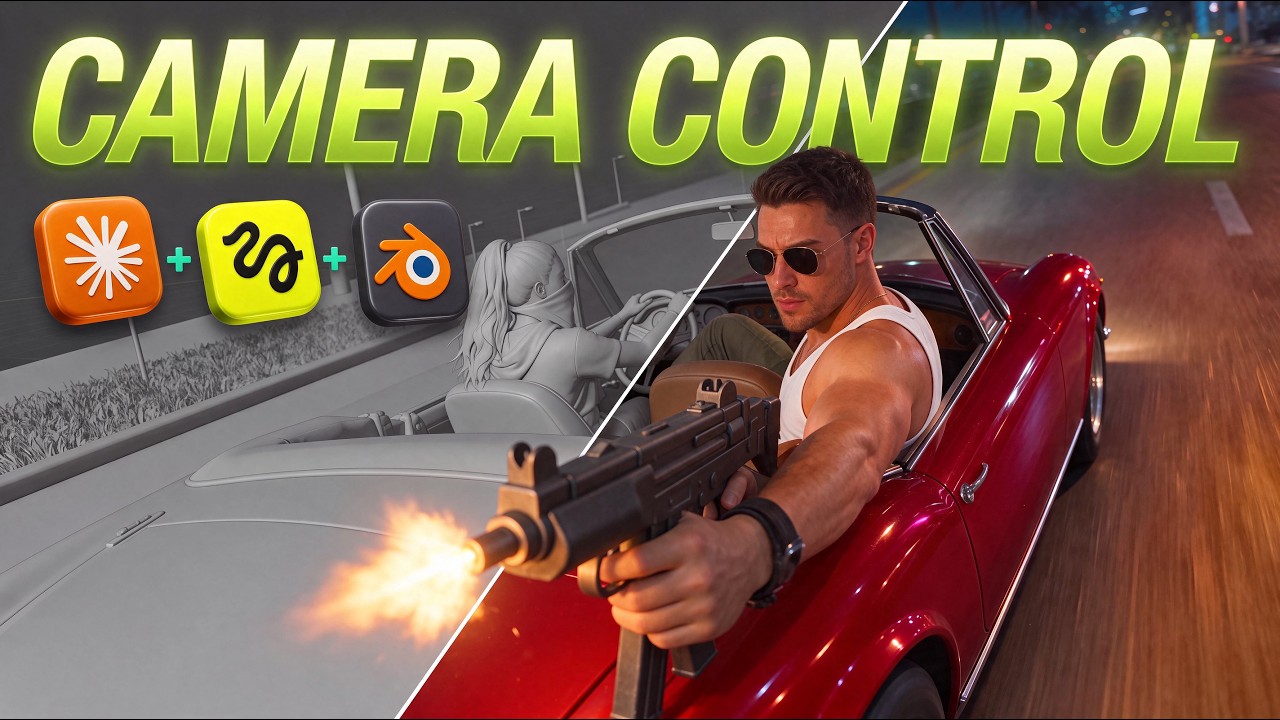
I Directed GTA VI Style AI Scenes in Blender (Seedance 2.5)
Using simple 3D blockout animations in Blender as video reference inputs allows AI filmmakers to lock down camera motion, staging, and dialogue timing before spending credits on video generation models.
What this lesson covers
Thomas Lundström demonstrates a Blender-based director workflow that uses Claude Code and low-fidelity 3D blockout animations to guide AI video generation in Higgsfield Cinema Studio. He shows how to build camera sequences, refine blocking via text iteration, and pass references into Seedance 2.5 for precise control over final video output.
Key takeaways from the creator
AI-extracted notes, not independently verified product claims. Timestamp links let you check each point in the original video.
- 01:44 ↗
Setting up the system requires installing the Claude desktop app, Blender, and the Higgsfield plugin for Blender.
- 02:38 ↗
Combining structured text prompts with a 3D blockout reference video provides exact camera control before spending generation credits.
- 03:38 ↗
Claude Code can build 3D blockout camera sequences directly inside Blender when given natural language prompts using the blockout skill.
- 04:18 ↗
Using simple colored pill shapes instead of realistic humans in Blender blockouts prevents unwanted character performance translation while keeping spatial awareness clear for AI models.
- 05:54 ↗
Scanning a QR code via the Higgsfield Blender plugin allows creators to drive the Blender camera manually using an iPhone for natural camera shake.
- 07:36 ↗
Prompts paired with Blender blockouts require explicit instruction telling the video model that the reference is strictly for blockout framing, so it does not mimic the grayscale aesthetic.
Workflow outlined in the video
- Install the Claude desktop app, Blender, and the Higgsfield Blender plugin.
- Launch Claude Code, select the blockout skill, and describe your scene, shot angles, and dialogue requirements.
- Preview the blocking directly in Blender's viewport by pressing spacebar, then give Claude Code text feedback to iterate on camera speed and positioning.
- Scan the QR code in Blender using the Higgsfield plugin on a mobile phone to manually record custom hand-held camera movements.
- Create character, prop, and environment assets inside Higgsfield Cinema Studio and save them as named elements.
- Provide Claude Code with a screenshot of the element names to generate fully tagged prompts that reference the Blender blockout video in Cinema Studio.
Before you use this workflow
These notes describe the source video at its publication date. Model access, pricing, connectors and interfaces may have changed. Check the original source and the provider’s current documentation before installing an add-on, connecting an account or spending credits.
ReelStack has not independently tested this workflow. Preview one representative shot and check motion, continuity and output quality before applying it to a full production. No result, cost saving or model capability is guaranteed.
Explore the tools
Put the lesson in context
When to use Blender previsualization for AI video →How to interpret the numbers
17,974 views captured 21 November 2026. ReelStack recommendation score: 71/100. Formula: radar-v5. This is ReelStack’s calculation, not a YouTube rating or a measure of factual accuracy.
Show the calculation
- 65% performance: 3.80× views vs 4 other channel videos observed at a similar age. View-evidence factor 95% (views / (views + 1,000))
- 25% freshness: 68/100 with a 14-day half-life
- Momentum pending: collecting daily snapshots; its 20% weight goes to observed performance, not free points
- 10% engagement: 52/100; likes + 4× comments, smoothed with a 500-view neutral prior