How to Use Kling O1: The "Nano-Banana" of AI Video Tutorial
The release of unified video-to-video editing models bridges the gap between traditional live-action footage and generative AI workflows, expanding post-production capabilities.
What this lesson covers
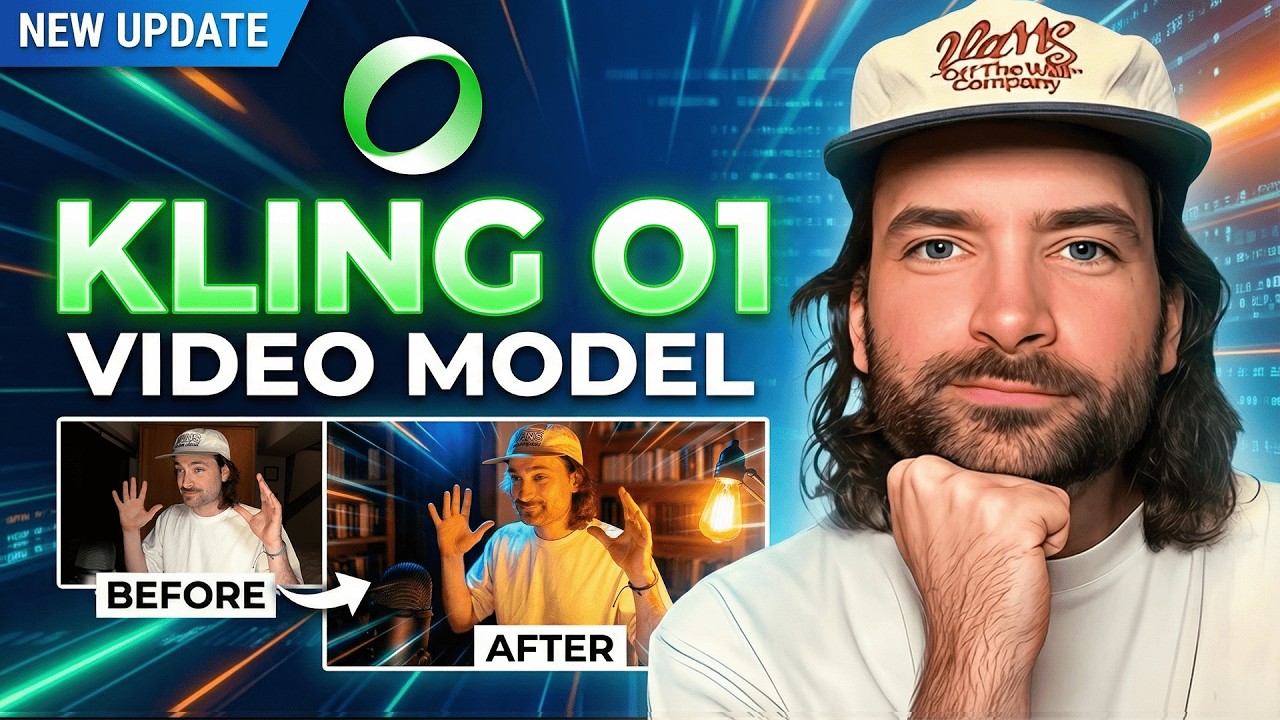
This tutorial explores Kling's Omni One model update, which introduces unified text, image, and video generation capabilities. The presenter demonstrates how to upload existing video references, perform native video editing, and execute character and clothing swaps while maintaining visual consistency.
Key takeaways from the creator
AI-extracted notes, not independently verified product claims. Timestamp links let you check each point in the original video.
- 00:02 ↗
Kling announced the Omni One update, a unified AI model combining text, image, and video generation for direct video editing via natural language.
- 00:52 ↗
Kling O1 supports 10-second video generation at 1080p resolution, providing a significant upgrade over previous 5-second 720p limitations.
- 02:25 ↗
Creators can use green screen footage or live-action reference videos to adjust scene lighting, change backgrounds, and follow camera movements.
- 05:18 ↗
The model enables advanced visual effects tasks like removing background crowds from busy city locations while preserving subject and structural consistency.
Workflow outlined in the video
- Access Kling's Creative Studio and navigate to the Kling O1 video generation suite.
- Review the official user guide documentation and feed it into a custom LLM to generate hyper-focused prompts.
- Upload reference videos or green screen footage to test native lighting adjustments and background swaps.
- Combine image references for characters, locations, and products to maintain strict multi-element consistency in commercial spots.
Before you use this workflow
These notes describe the source video at its publication date. Model access, pricing, connectors and interfaces may have changed. Check the original source and the provider’s current documentation before installing an add-on, connecting an account or spending credits.
ReelStack has not independently tested this workflow. Preview one representative shot and check motion, continuity and output quality before applying it to a full production. No result, cost saving or model capability is guaranteed.
Explore the tools
How to interpret the numbers
57,486 views captured 24 October 2026. ReelStack recommendation score: 33/100. Formula: radar-v5. This is ReelStack’s calculation, not a YouTube rating or a measure of factual accuracy.
Show the calculation
- 45% performance: 1.27× views vs 5 other channel videos observed at a similar age. View-evidence factor 98% (views / (views + 1,000))
- 25% freshness: 0/100 with a 14-day half-life
- 20% momentum: 3 views/day vs 21 channel baseline (4 comparable uploads), with the same view-evidence factor
- 10% engagement: 58/100; likes + 4× comments, smoothed with a 500-view neutral prior