How to Make Professional AI Animations in 2026
This workflow addresses the core AI animation challenge of visual inconsistency across multiple clips by emphasizing pre-generated asset references and structured narrative planning.
What this lesson covers
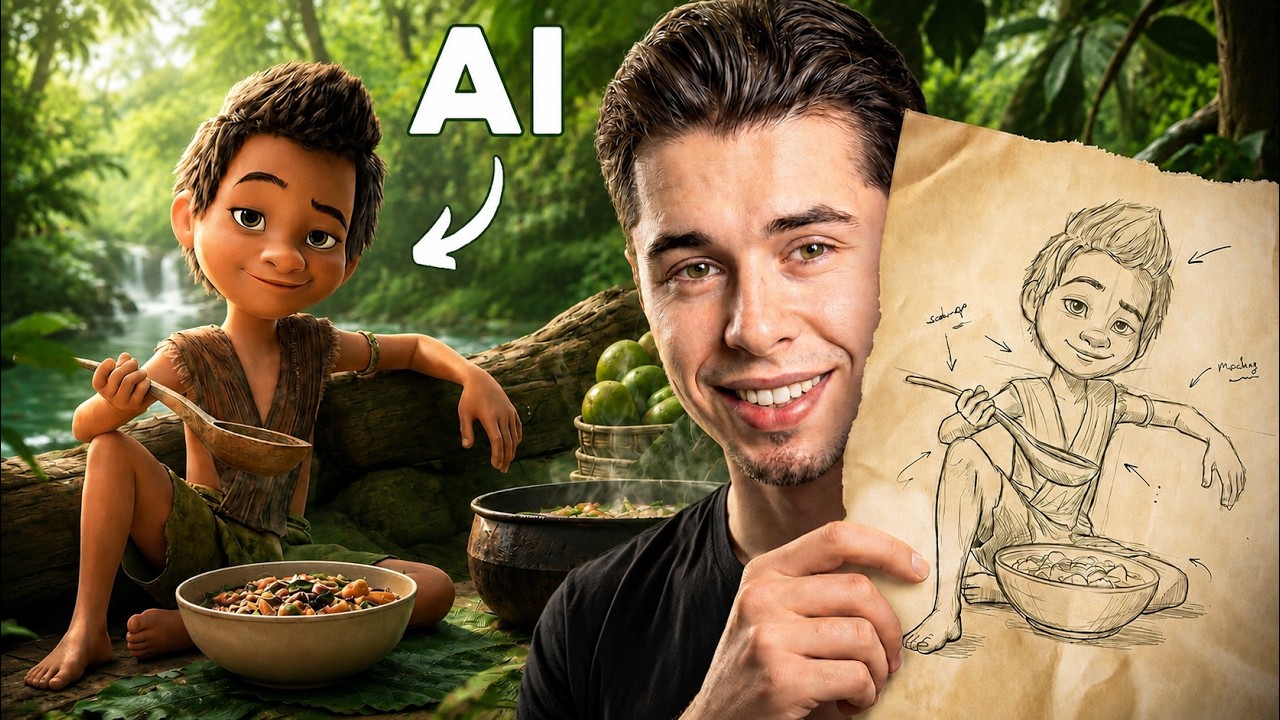
Youri van Hofwegen demonstrates a complete workflow for generating studio-quality 3D animations using Claude for story foundation and Higgsfield Cinema Studio for asset and video creation. The tutorial covers creating consistent character, location, and prop references before assembling multi-shot animated sequences.
Key takeaways from the creator
AI-extracted notes, not independently verified product claims. Timestamp links let you check each point in the original video.
- 0:20 ↗
Establishing a detailed story foundation in Claude before generating clips prevents the AI from improvising and breaking visual continuity across scenes.
- 1:29 ↗
Creating dedicated assets for characters, locations, and objects beforehand gives the AI fixed reference points to ensure consistent style across all shots.
- 2:30 ↗
Choosing the appropriate generation model—such as auto for stylized 3D characters and cinematic locations for environments—optimizes form and atmospheric scale.
- 3:34 ↗
Configuring Cinema Studio 3.0 with smart shot control allows the model to automatically follow camera decisions described in the prompt without manual camera setup.
- 5:50 ↗
Loading all four created asset elements into every video generation locks the visual identity consistently across all subsequent scenes.
Workflow outlined in the video
- Open Claude and use a structured prompt to generate a detailed scene description and story foundation.
- Log into Higgsfield Cinema Studio and navigate to image mode to generate initial character, location, and object assets.
- Switch to video mode in Cinema Studio, add your created assets as references, and save them as elements.
- Set your video generation parameters to 15 seconds, 720p, 16:9 aspect ratio, and smart shot control.
- Generate your sequential clips while referencing previous shots to maintain motion continuity and consistent style.
Before you use this workflow
These notes describe the source video at its publication date. Model access, pricing, connectors and interfaces may have changed. Check the original source and the provider’s current documentation before installing an add-on, connecting an account or spending credits.
ReelStack has not independently tested this workflow. Preview one representative shot and check motion, continuity and output quality before applying it to a full production. No result, cost saving or model capability is guaranteed.
Explore the tools
How to interpret the numbers
90,291 views captured 25 October 2026. ReelStack recommendation score: 48/100. Formula: radar-v5. This is ReelStack’s calculation, not a YouTube rating or a measure of factual accuracy.
Show the calculation
- 45% performance: 2.34× views vs 11 other channel videos observed at a similar age. View-evidence factor 99% (views / (views + 1,000))
- 25% freshness: 0/100 with a 14-day half-life
- 20% momentum: 317 views/day vs 54 channel baseline (5 comparable uploads), with the same view-evidence factor
- 10% engagement: 1/100; likes + 4× comments, smoothed with a 500-view neutral prior