How to Face Swap Any Video with AI (Perfect Lipsync)
Moving beyond crude face-blending overlays to motion-controlled video reconstruction allows AI filmmakers to place custom characters into live-action or iconic movie scenes with correct environmental lighting.
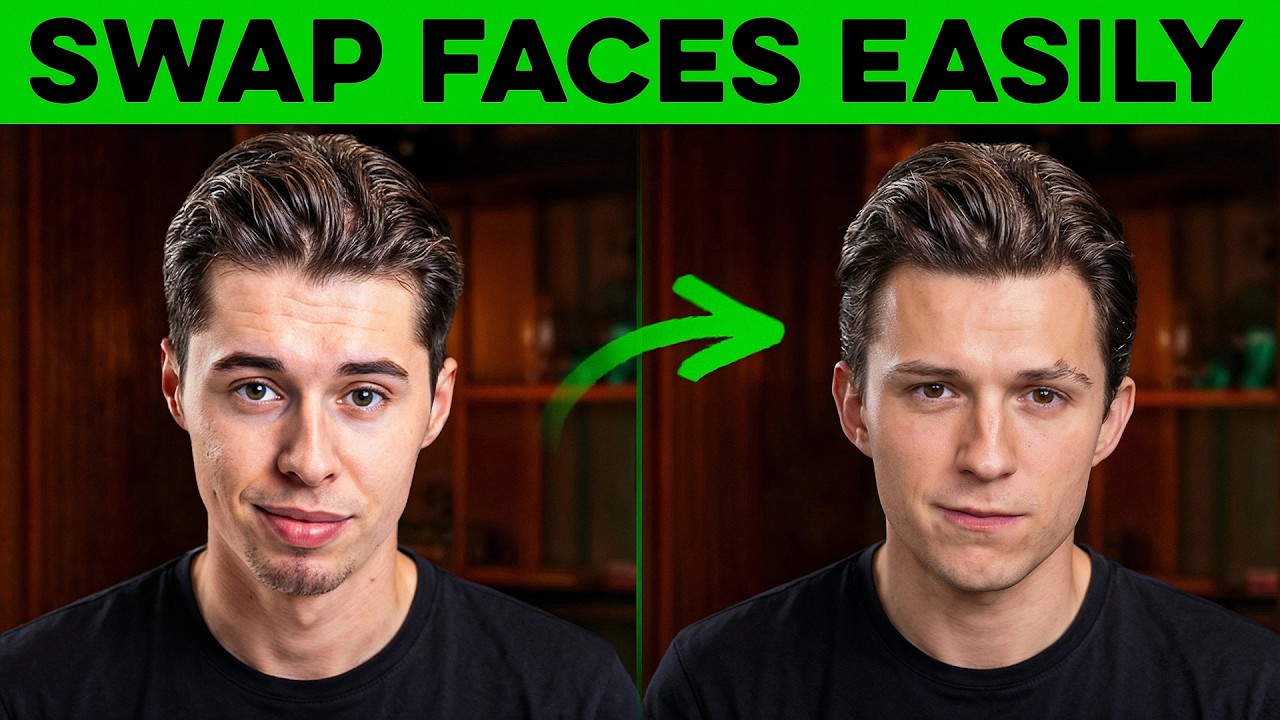
What this lesson covers
This tutorial demonstrates how to execute advanced face swaps and digital identity generation using Arcads and Kling Motion Control. It details separating motion references and character images to rebuild scenes from scratch rather than simply overlaying faces.
Key takeaways from the creator
AI-extracted notes, not independently verified product claims. Timestamp links let you check each point in the original video.
- 01:03 ↗
Nano Banana Pro can replace a person in a reference frame while keeping posture, background, and lighting consistent for face swapping.
- 02:24 ↗
Kling 2.6 motion control rebuilds a brand-new video around a character image based on a motion reference video rather than overlaying a face.
- 03:50 ↗
Movie screenshots can be used as references in Nano Banana Pro to place custom-generated characters directly into iconic film sets.
- 05:03 ↗
Arcads integrated toolset allows users to directly add captions, remove backgrounds, or take snapshots from generated videos without leaving the workspace.
Workflow outlined in the video
- Record a reference video capturing your desired movements and gestures.
- Upload the first frame of your video into Arcads and use Nano Banana Pro to generate a new character with matching posture and background.
- Navigate to Kling 2.6 motion control and upload your original video as the motion reference and your AI-generated character image as the character reference.
- Generate the rebuilt video to transfer your exact movements onto the new character with matching environmental lighting.
- Use built-in workspace tools to add captions, remove backgrounds, or extract thumbnail snapshots from the final video.
Before you use this workflow
These notes describe the source video at its publication date. Model access, pricing, connectors and interfaces may have changed. Check the original source and the provider’s current documentation before installing an add-on, connecting an account or spending credits.
ReelStack has not independently tested this workflow. Preview one representative shot and check motion, continuity and output quality before applying it to a full production. No result, cost saving or model capability is guaranteed.
How to interpret the numbers
128,237 views captured 25 October 2026. ReelStack recommendation score: 50/100. Formula: radar-v5. This is ReelStack’s calculation, not a YouTube rating or a measure of factual accuracy.
Show the calculation
- 45% performance: 2.59× views vs 10 other channel videos observed at a similar age. View-evidence factor 99% (views / (views + 1,000))
- 25% freshness: 0/100 with a 14-day half-life
- 20% momentum: 227 views/day vs 30 channel baseline (7 comparable uploads), with the same view-evidence factor
- 10% engagement: 1/100; likes + 4× comments, smoothed with a 500-view neutral prior