How OpenArt VFX Changed My Filmmaking Workflow (Full Guide)
Browser-based video inpainting and relighting workflows allow indie creators to perform complex shot modifications and environmental visual effects directly on raw video plates without manual rotoscoping.
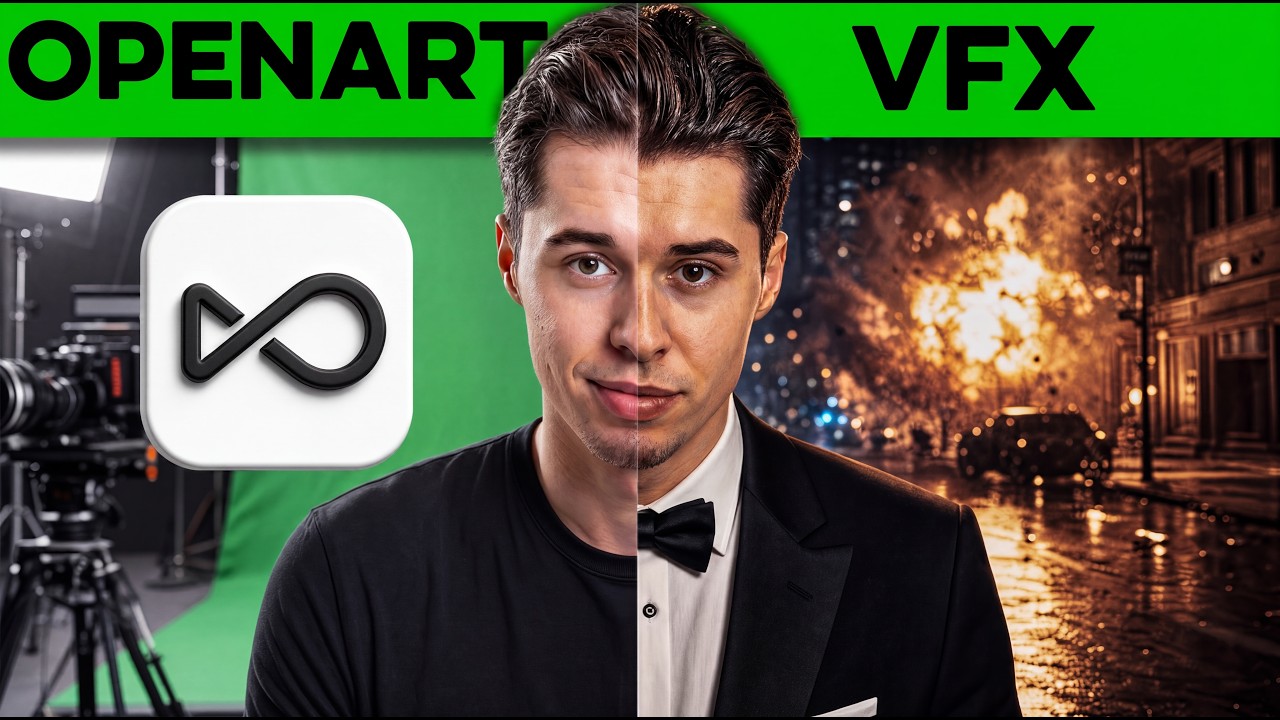
What this lesson covers
Youri van Hofwegen demonstrates how OpenArt's AI VFX suite enables non-destructive video editing on pre-existing footage without requiring green screens or traditional software like After Effects. He walks through practical workflows for video inpainting to change clothing and objects, background replacement across diverse environments, and scene relighting.
Key takeaways from the creator
AI-extracted notes, not independently verified product claims. Timestamp links let you check each point in the original video.
- 01:08 ↗
Mask specific elements like outfits in OpenArt, invert the selection, and prompt diffusion models like Nano Banana 2 to replace items while tracking motion.
- 02:45 ↗
Apply Replace Background to separate foreground subjects without a green screen and rebuild scenes around them using preset or custom background images.
- 05:18 ↗
Use Relight presets (such as moonlit blue or neon rim light) to dynamically change lighting physics across both the subject and background simultaneously.
Workflow outlined in the video
- Upload raw video footage to the OpenArt VFX workspace.
- Select Video Inpaint, mask the desired subject area, invert the mask selection, and confirm.
- Generate a replacement element using image models like Nano Banana 2 or GPT Image 2 with targeted text prompts.
- Navigate to Replace Background to isolate the subject and insert new environmental plates.
- Apply Relight presets under lighting, mood, or atmosphere categories to match subject lighting to the new scene.
Before you use this workflow
These notes describe the source video at its publication date. Model access, pricing, connectors and interfaces may have changed. Check the original source and the provider’s current documentation before installing an add-on, connecting an account or spending credits.
ReelStack has not independently tested this workflow. Preview one representative shot and check motion, continuity and output quality before applying it to a full production. No result, cost saving or model capability is guaranteed.
How to interpret the numbers
14,948 views captured 25 October 2026. ReelStack recommendation score: 14/100. Formula: radar-v5. This is ReelStack’s calculation, not a YouTube rating or a measure of factual accuracy.
Show the calculation
- 45% performance: 0.40× views vs 11 other channel videos observed at a similar age. View-evidence factor 94% (views / (views + 1,000))
- 25% freshness: 0/100 with a 14-day half-life
- 20% momentum: 13 views/day vs 133 channel baseline (6 comparable uploads), with the same view-evidence factor
- 10% engagement: 4/100; likes + 4× comments, smoothed with a 500-view neutral prior