How I Make Motion Graphics Inside Claude Motion (Opus 5.5)
Demonstrates a practical hybrid code-and-generation pipeline using Claude Motion with Higgsfield MCP, bridging text-driven generation with traditional post-production software like After Effects and Blender.
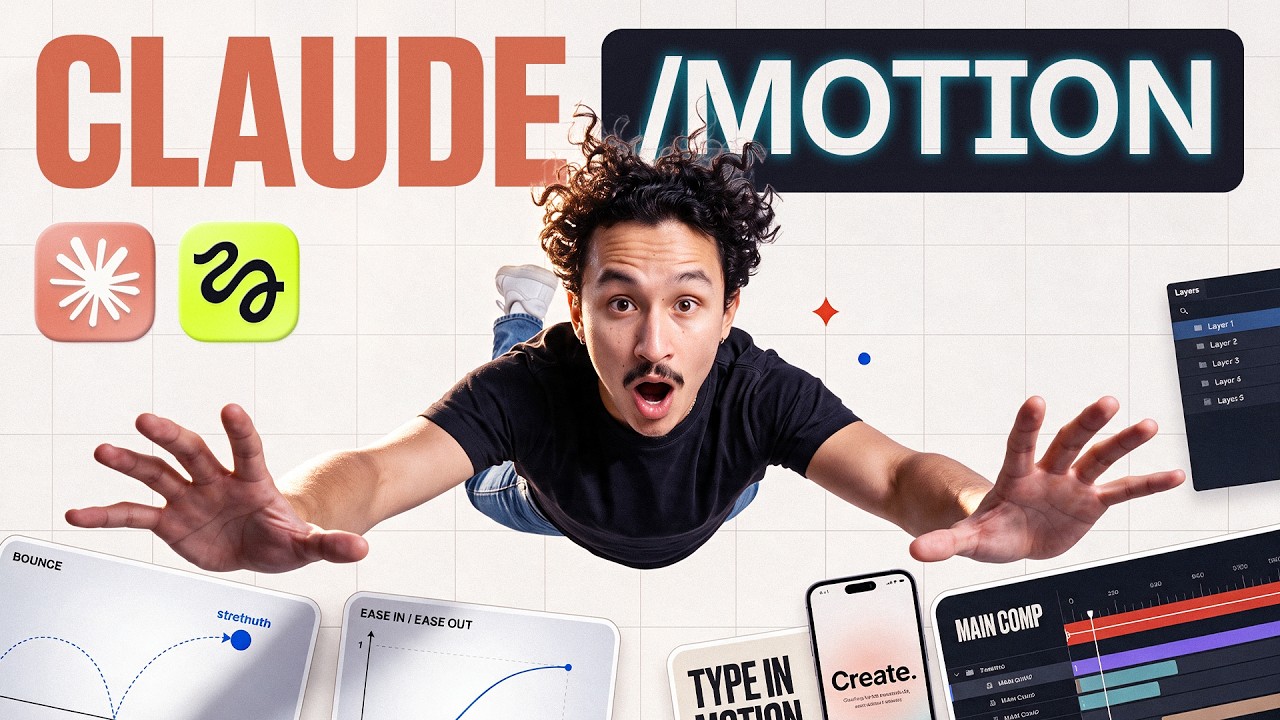
What this lesson covers
Higgsfield AI demonstrates how to integrate Claude Motion with Higgsfield MCP to produce editable motion graphics, 3D product ads, and animated explainers. The video details how to prompt reference videos, adjust layouts in code, and export projects into After Effects and Blender.
Key takeaways from the creator
AI-extracted notes, not independently verified product claims. Timestamp links let you check each point in the original video.
- 00:18 ↗
Setting up the pipeline involves opening Motion in Claude Artifacts and linking Higgsfield MCP through Claude Code.
- 01:15 ↗
Providing direct video references to Claude produces significantly tighter motion tracking and layout recreation than text prompts alone.
- 02:46 ↗
Code-based motion graphics generated in Claude can be transferred into Adobe After Effects with preserved editable layers and animation controls.
- 06:24 ↗
3D product sequences created in Claude Motion can swap core asset meshes while preserving camera motion and timing, with full scene export to Blender.
- 09:22 ↗
Animated shorts can be produced by combining Higgsfield character animation and voice generation with Claude-scripted kinetic typography and UI elements.
Workflow outlined in the video
- Open Claude Artifacts, select Motion, and paste the Higgsfield MCP command from Claude Code into the chat.
- Upload a reference video to Claude to guide motion timing, camera moves, and scene transitions.
- Use targeted follow-up prompts to refine color palettes, typography, scene lengths, and background asset generation.
- Request Claude to package and convert the project code into an editable format for Adobe After Effects or Blender.
- Pair Higgsfield-generated character shots and voice audio with Claude-coded graphics to assemble narrative explainers.
Before you use this workflow
These notes describe the source video at its publication date. Model access, pricing, connectors and interfaces may have changed. Check the original source and the provider’s current documentation before installing an add-on, connecting an account or spending credits.
ReelStack has not independently tested this workflow. Preview one representative shot and check motion, continuity and output quality before applying it to a full production. No result, cost saving or model capability is guaranteed.
Explore the tools
Put the lesson in context
When to use Blender previsualization for AI video →How to interpret the numbers
53,092 views captured 14 October 2026. ReelStack recommendation score: 62/100. Formula: radar-v5. This is ReelStack’s calculation, not a YouTube rating or a measure of factual accuracy.
Show the calculation
- 65% performance: 1.15× views vs 8 other channel videos observed at a similar age. View-evidence factor 98% (views / (views + 1,000))
- 25% freshness: 97/100 with a 14-day half-life
- Momentum pending: collecting daily snapshots; its 20% weight goes to observed performance, not free points
- 10% engagement: 35/100; likes + 4× comments, smoothed with a 500-view neutral prior