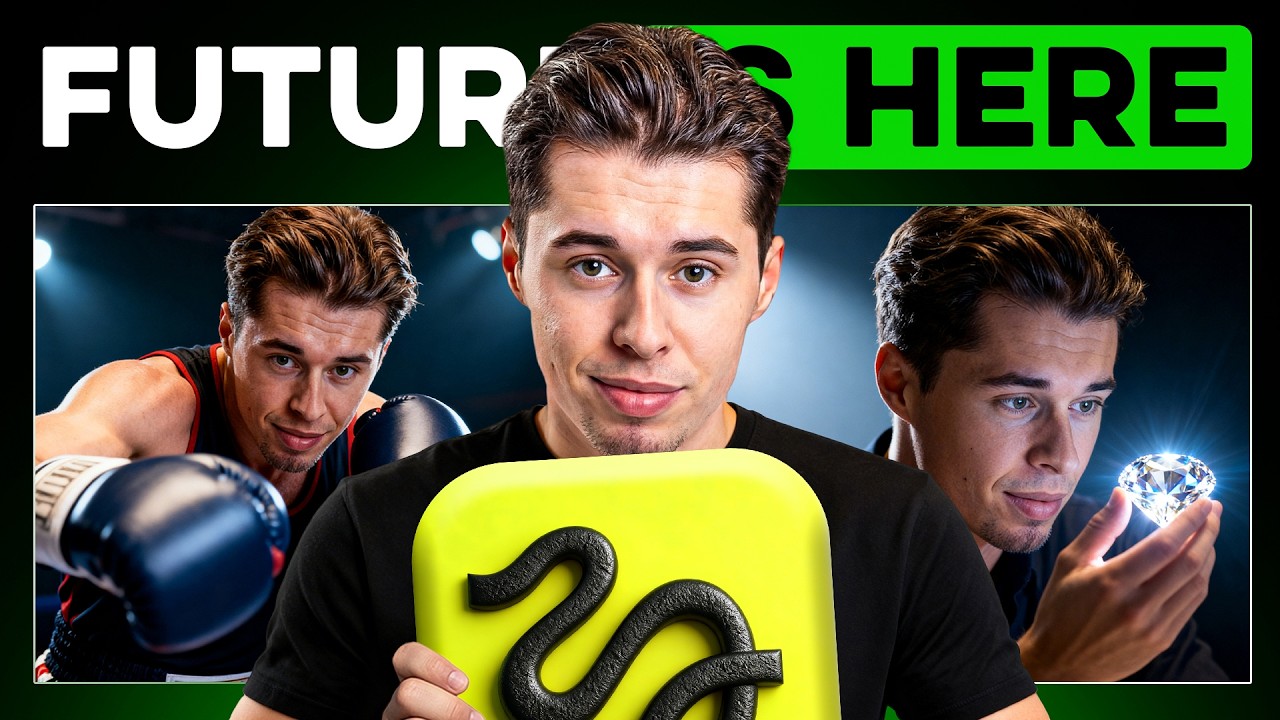
Higgsfield’s NEW Soul 2.0 AI Image Generator is AMAZING
Maintaining consistent character identity across varying lighting conditions and environments is a major bottleneck for virtual production, making robust character locking tools essential for digital influencer creation.
What this lesson covers
This video breaks down the features of Higgsfield Soul 2.0 for generating realistic AI images and establishing a consistent AI influencer. It demonstrates a complete workflow utilizing character locking, visual presets, and targeted inpainting.
Key takeaways from the creator
AI-extracted notes, not independently verified product claims. Timestamp links let you check each point in the original video.
- 0:14 ↗
Higgsfield Soul 2.0 generates high-fidelity images with realistic camera perspectives, textures, and natural posing.
- 0:42 ↗
Aspect ratios, resolution settings, and style presets allow users to instantly alter mood and composition without complex prompt engineering.
- 2:49 ↗
Soul ID character locking requires uploading roughly 20 diverse training shots to successfully preserve identity across multiple generations.
- 4:37 ↗
Character swap features enable users to replace subjects in target reference photos while preserving the original lighting, composition, and atmosphere.
- 6:22 ↗
Nano Banana Pro Inpaint allows localized editing using drawn masks to seamlessly insert props like cups and clothing into existing scenes.
Workflow outlined in the video
- Open Higgsfield, navigate to the image tab, and select Higgsfield Soul 2.0.
- Upload at least 20 diverse photos of your subject to the character tab to train and lock a consistent identity.
- Generate base images using style presets or apply character swap on target reference scenes to match desired environments.
- Use the inpainting tool to mask specific areas and add props or modifications while keeping the rest of the image intact.
Before you use this workflow
These notes describe the source video at its publication date. Model access, pricing, connectors and interfaces may have changed. Check the original source and the provider’s current documentation before installing an add-on, connecting an account or spending credits.
ReelStack has not independently tested this workflow. Preview one representative shot and check motion, continuity and output quality before applying it to a full production. No result, cost saving or model capability is guaranteed.
Explore the tools
How to interpret the numbers
39,787 views captured 25 October 2026. ReelStack recommendation score: 29/100. Formula: radar-v5. This is ReelStack’s calculation, not a YouTube rating or a measure of factual accuracy.
Show the calculation
- 45% performance: 0.51× views vs 12 other channel videos observed at a similar age. View-evidence factor 98% (views / (views + 1,000))
- 25% freshness: 0/100 with a 14-day half-life
- 20% momentum: 117 views/day vs 51 channel baseline (7 comparable uploads), with the same view-evidence factor
- 10% engagement: 2/100; likes + 4× comments, smoothed with a 500-view neutral prior