Here’s how Hollywood is Directing Their AI Films
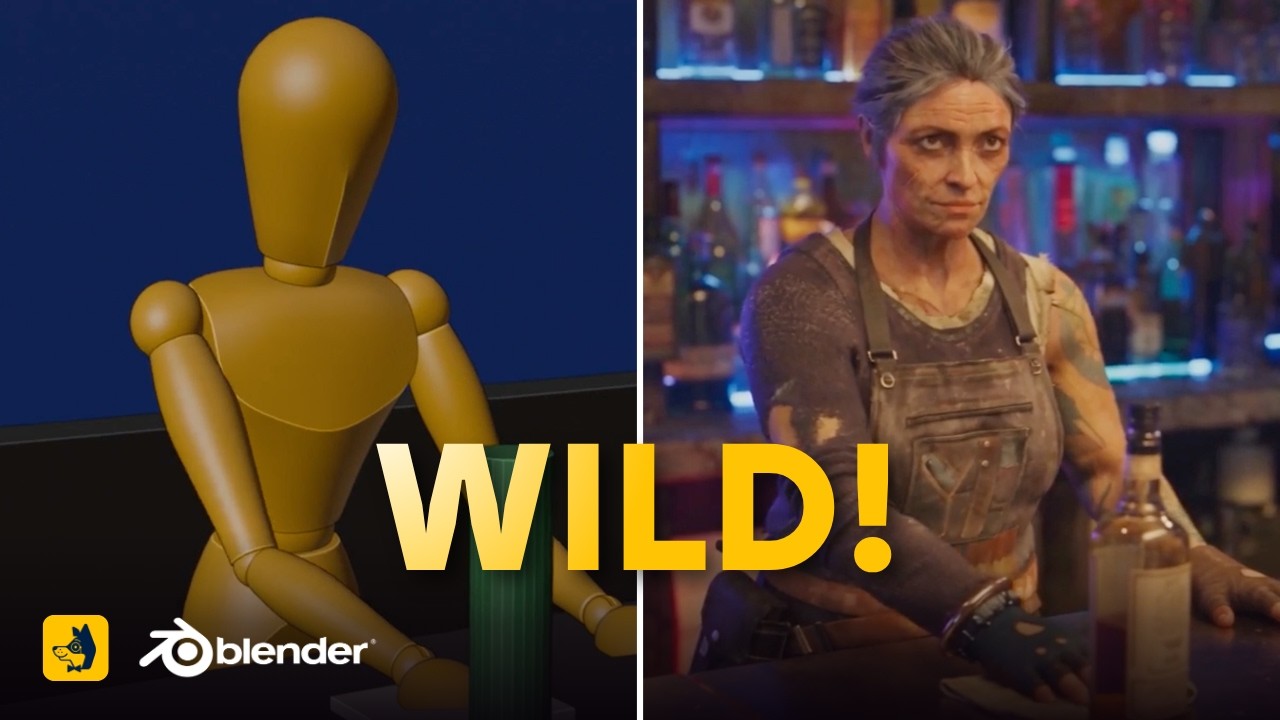
Integrating Claude with Blender via MCP solves AI video's persistent camera motion and composition inconsistencies by letting filmmakers generate precise 3D pre-visualizations using plain language.
What this lesson covers
Albert Bozesan demonstrates how to integrate Claude Desktop with Blender using an official MCP add-on to automate 3D scene blocking and camera control for AI video workflows. He guides viewers through installing the extension from Blender Lab, configuring Claude connectors, and leveraging a custom starter kit to bypass manual 3D software work.
Key takeaways from the creator
AI-extracted notes, not independently verified product claims. Timestamp links let you check each point in the original video.
- 01:30 ↗
Blender's open-source architecture makes it directly compatible with AI-controlled workflows via official add-ons.
- 02:07 ↗
The official Blender MCP add-on allows Claude Desktop to steer camera motion and composition directly inside the 3D workspace.
- 03:48 ↗
Enabling 'online access' in Blender's system preferences is mandatory before installing extensions via drag-and-drop from Blender Lab.
- 04:00 ↗
Configuring CUDA under Blender's system compute settings prevents significant render performance bottlenecks on Nvidia GPUs.
- 05:16 ↗
Claude Desktop connects to Blender by enabling the official Blender connector under settings.
- 07:43 ↗
Exporting 3D reference renders at 720p resolution is sufficient for blocking reference and prompt steering in AI video pipelines.
Workflow outlined in the video
- Download and install Blender 5.2 LTS or later from blender.org, ensuring online access and CUDA GPU settings are enabled in preferences.
- Locate the MCP server add-on on blender.org/lab and drag and drop it into Blender, adding lab.blender as an allowed repository.
- Open Claude Desktop settings, scroll to connectors, search for the official Blender integration, and install and enable it.
- Open the provided Blender starter kit file containing configured prompt instructions, CC0 character rigs, and pre-set video timelines.
- Input the starter prompt into Claude Desktop to direct scene blocking, character placement, and camera moves via conversational commands.
Before you use this workflow
These notes describe the source video at its publication date. Model access, pricing, connectors and interfaces may have changed. Check the original source and the provider’s current documentation before installing an add-on, connecting an account or spending credits.
ReelStack has not independently tested this workflow. Preview one representative shot and check motion, continuity and output quality before applying it to a full production. No result, cost saving or model capability is guaranteed.
Explore the tools
Put the lesson in context
When to use Blender previsualization for AI video →How to interpret the numbers
36,607 views captured 22 October 2026. ReelStack recommendation score: 64/100. Formula: radar-v5. This is ReelStack’s calculation, not a YouTube rating or a measure of factual accuracy.
Show the calculation
- 65% performance: 1.68× current views vs the channel's recent median; same-age history is not yet available. View-evidence factor 97% (views / (views + 1,000))
- 25% freshness: 76/100 with a 14-day half-life
- Momentum pending: collecting daily snapshots; its 20% weight goes to observed performance, not free points
- 10% engagement: 52/100; likes + 4× comments, smoothed with a 500-view neutral prior